Back to Top

HikVision NVR "Invalid encryption key" error message

Seen as a pop-up at the bottom right screen corner in your browser when trying to access a video stream from a HikVision camera to Live View it/them on your HikVision NVR.


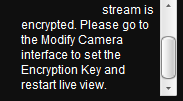
There is another version of the message - "The stream is encrypted. Please go to the Local Configuration interface to set the Encryption Key and restart live view".


The 'key' that you need to enter is actually the "Verification Code" that you set when you enable and set up Platform Access for Hik-Connect.

Let me re-state and clarify this further, this is the entry that YOU make, this is where YOU set the encryption key / verification code. It is your secret code, which you should only share with others that you wish to allow to view your system.

YOU enter it here:

Then, to be able to view your cameras etc. any viewer must re-enter this code/key when they first try to view e.g. on a browser, App, software, etc.

You do seem to need to enter this verification code / encryption key via the browser of any additional PC (even on the same LAN) that you wish to access the NVR from.

You will need to enter the code / key here:


You can disable encrypted streaming if you prefer.
This can only be done (enabled/disabled) via a monitor directly connected to your NVR.
You will need to navigate to Configuration -> Network -> Access Platform and untick "Enable Stream Encryption".

Hikvision IVMS-4200 - Stream is Encrypted

Issue

Hikvision DS-7600 CCTV system remote access via IVMS-4200 software fails with following error:
... stream is encrypted. Please go to the Modify Camera interface to set the Encryption Key and restart live view.

Resolution

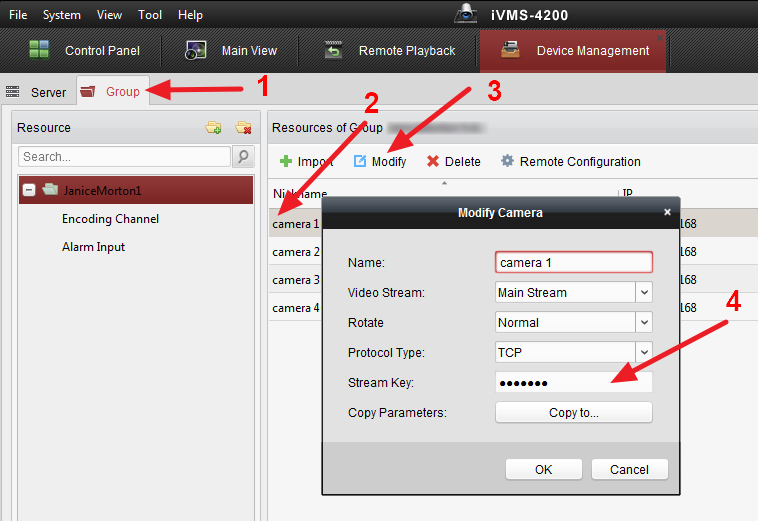
It took me good 15 minutes to find the above mentioned "Modify Camera" interface within IVMS-4200 software... The user manual also didn't have any references to entering the encryption key. Here is the solution:
  • In the main IVMS-4200 control panel click on Device Management.
  • Click on Group tab.
  • Select camera in question and click Modify
  • Enter Stream Key in the Modify Camera pop-up.

Bypass Windows Password


In this guide, we will show you how to bypass a Windows XP,  Windows Vista, Windows 7, Windows 8,  Windows 8.1 and Windows 10 logon password
We’ll use a Tool named Kon-Boot….It is paid software but allmost all softwares are crackable ans so is for Kon-Boot
What’s New ?
  • Windows 10 Supported (Offline only)
Steps To Bypass Windows Log-on using Pen-Drive
  1. Download and Extract Kon-Boot 2.4.rar from the links given below
  2. Plug in your Pen-Drive (Remove all other Pen-Drives)
  3. Right click on “usb_install_RUNASADMIN.bat” located in kon-bootUSB folder and pick “Run As Administrator” option.
  4. After Process Compeletion, Reboot
  5. Choose Boot from USB from BIOS settings
  6. Follow the installation procedure.
  7. After Booting process you can login without password, just press “Enter”
  8. Just Remove Kon-Boot PenDrive and Reboot to Get back the original Windows authentication functionality.
Steps To Bypass Windows Log-on using CD
  1. Download and Extract Kon-Boot 2.4.rar from the links given below
  2. Insert Empty CD in your Optical Disk Drive
  3. Download and Install ImgBurn From the Links Given Below
  4. Run ImgBurn program
  5. Select “Write image file to disc”
  6. Click “Browse”
  7. Select “kon-bootCD.iso” –  this file is located in your “kon-bootCD” directory.
  8. You are ready to use your Kon-Boot
  9. Choose Boot from CD from BIOS settings
  10. Follow the installation procedure.
  11. After Booting process you can login without password, just press “Enter”
  12. Just Remove Kon-Boot CD and Reboot to Get back the original Windows authentication functionality
How To Change Profile Password?
  1. Boot with Kon-Boot
  2. Navigate the Start Menu to Control Panel
  3. Select “User Accounts and Family Safety”
  4. (if the User Account Control window appears) Click “Yes” and leave the password field empty
  5. Select “Create a new account”
  6. Create the account (pick a name) and set the permissions (administrator).
  7. Disconnect Kon Boot and restart the computer to restore original Windows authentication functionality.
  8. After Restart,  Select your new User Account (the account you have created)
  9. Navigate the Start Menu to Control Panel
  10. Select “User Accounts and Family Safety”
  11. Select the target User Account (the one you want to change)
  12. Select “Change the password”
  13. Input the new information for the account and click “Change password”
  14. You are done ðŸ™‚


Microsoft Office 2010, 2013, 2016 Activators

Activate volume licensed versions of Office by using KMS


 Manually  Activate Microsoft Software   2016 2013 2010

Activate Desktop Edition of Microsoft Office 2016

  1. Open an Elevated Command Prompt window. For instructions, please see our guide How To Open an Elevated Command Prompt.
  2. Type 
  3. CD \Program Files\Microsoft Office\Office16
  4. then press Enter.
  5. This assumes you installed Office in the default location.
  6. Note: If you installed the 32-bit version of Office on a 64-bit system, use this command instead:
  7. CD \Program Files (x86)\Microsoft Office\Office16
  8. Type
  9. cscript ospp.vbs /sethst:kms01.cit.cornell.edu
  10. ​​​​​​​then press Enter.  (Note: The url in the command above begins with kay-emm-ess-zero-one.)
  11. Type
  12. cscript ospp.vbs /act
  13. then press Enter.
  14. Close the command prompt window.

Activate a Windows Operating System (All Supported Versions)

Convert GPT drive into MBR using Command Prompt (cmd).

Convert GPT drive into MBR using Command Prompt (cmd).


Introduction
In this article i will describe a topic related to windows. Many of my visitors ask me about changing GPT drive into MBR drive. GPT stands for GUID Partition Table and MBR stand for Master Boot Record.
I also had a need to convert my GPT drive into MBR few years back. Actually i was getting error while windows installation :  Windows cannot be installed on this disk. The selected disk is of the GPT partition style. May be you are also in the same problem, that's why you are here. Anyways, then i got to know that for installing windows successfully i have to convert my GPT drive into MBR drive.
So in this article i will cover how to convert GPT drive into MBR drive using command prompt. I am using command prompt because some people go through this error after they have formatted  their windows. So they are not able to use Windows interface. You can also use command prompt from windows interface by typing "cmd" into Start Search Box. That's why i am using command prompt. You can use command prompt window during windows installation.

Solution 
You can follow these steps in Windows 7, Windows 8, Windows XP and Windows Vista.
Step 1.
 Backup all of your data form drives before converting the drive from GPT to MBR.
Step 2.
Open command prompt window during installation by pressing Shift + F10.
Step 3.
Type Diskpart into cmd window